

Account Management
The Verify.ET Console provides users with a dedicated settings workspace to manage their personal profile details, monitor active device sessions, audit security credentials, and review subscription statuses. This guide covers how to update your profile data, secure your active sessions, and safely manage your account lifecycle.
Section 1: Updating Profile Information
To view or alter your primary identity credentials, navigate to Profile under the Settings category on the left sidebar navigation menu.
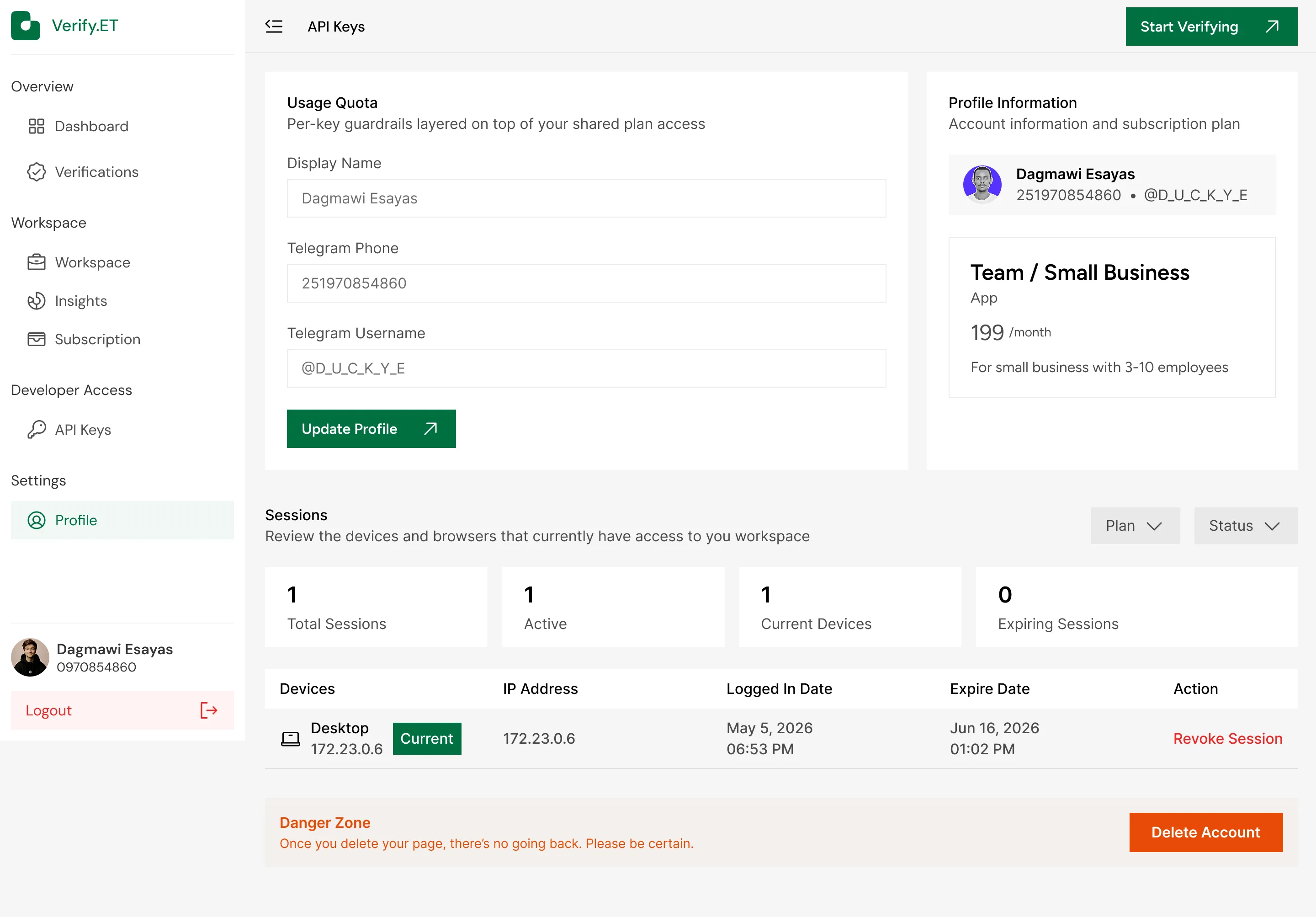
You can only update your display name. To update your Telegram phone and username, you need to do it in the Telegram app itself.
To update Display Name, enter your full personal or professional name string (e.g., Dagmawi Esayas). This name is utilized across corporate reports and workspace notifications.
Once you have verified that all inputs are accurate, click the green Update Profile ↗ button to commit your new configuration records immediately to the backend authentication server.
Section 2: Monitoring and Securing Device Sessions
Verify.ET tracks device connectivity parameters in real-time to protect corporate workspaces from unauthorized session hijacking or credential leaks.
1. High-Level Security Indicators
The Sessions panel compiles four operational summary cards:
- Total Sessions: The historical or active count of browser instances granted access tokens.
- Active: The number of sessions concurrently broadcasting system lookup queries.
- Current Devices: Identifies the hardware profile currently executing your immediate web console session.
- Expiring Sessions: The count of authentication tokens nearing their scheduled lifetime boundary.
2. Immediate Session Revocation
If you spot an unrecognized connection location, notice an unfamiliar IP address string, or forgot to log out of a public workstation terminal, use the Action column:
- Click the red Revoke Session button next to that specific log row. This immediately drops the network connection, deletes the active token, and forces that remote terminal back to the baseline login screen.
Section 3: The Danger Zone
Located at the bottom of the Profile settings screen is an isolated container marked Danger Zone. This module handles permanent account deactivations.
- Delete Account (Button): If you wish to close your profile completely, clicking the red Delete Account button starts the system removal script.
- CRITICAL WARNING: As detailed on the panel banner, "Once you delete your page, there's no going back. Please be certain." This operation instantly deletes your business profiles, revokes all active programmatic API key tokens, drops your staff authorization codes, and clears your historical verification ledger logs permanently.
Security Escalation & Support Contacts
If you suspect your primary admin profile has been compromised, experience an authentication lockout via the Telegram notification bot, or require assistance transferring a parent corporate account to a new owner, reach out to our support team:
Suba Software Support: Suba Software

